
 Multi-currency support
Leveraged ETFs
Cryptocurrencies
UK Gilts
UK CGT reporting
Equalisation payments
List of shortcut keys
Notes on data storage
Multi-currency support
Leveraged ETFs
Cryptocurrencies
UK Gilts
UK CGT reporting
Equalisation payments
List of shortcut keys
Notes on data storage

Portly was hand-written by humans (me, specifically) with minimal AI input. For the moment, at least, I believe that nothing beats good old-fashioned human craftsmanship !

Please note : Once you've installed Portly, the getting started page has a short tutorial to help you find your feet.
Windows download & installation
Download Portly-1.0.1.msi Windows Installer (68 Mb)
By default, Portly will be installed into C:\Program Files\Portly (you can modify this default location if you prefer). The installation program will also create a Start menu entry and a desktop icon.
When installation is complete, just double-click on the Portly icon to begin.
The first time you run Portly, it will create a data directory under your Windows user folder : C:/Users/{your name}/AppData/Local/Portly. This is where your personal data will be stored. You can read more here.
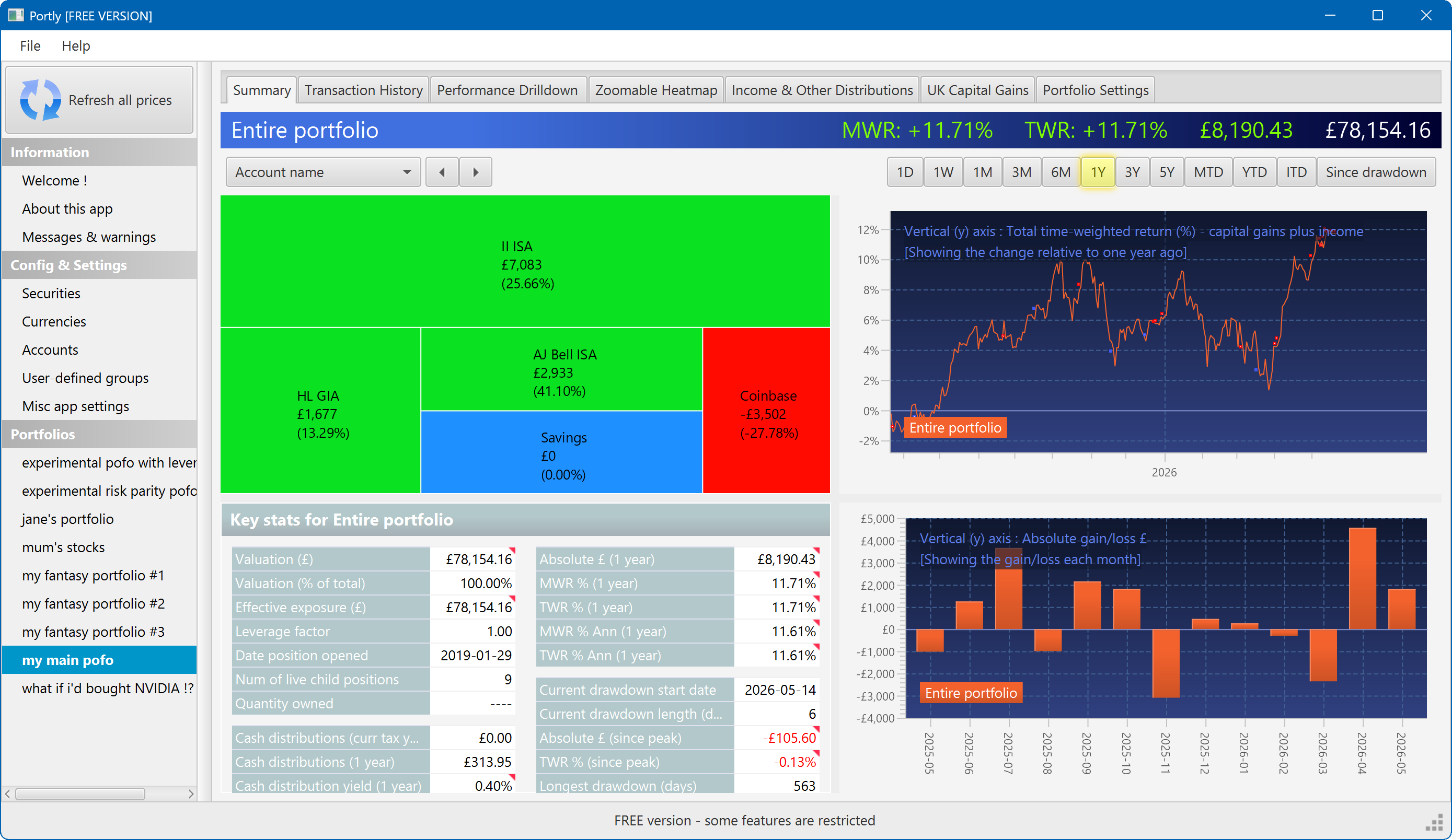
The summary screen gives an at-a-glance overview of your portfolio's performance. To read more about it, click here
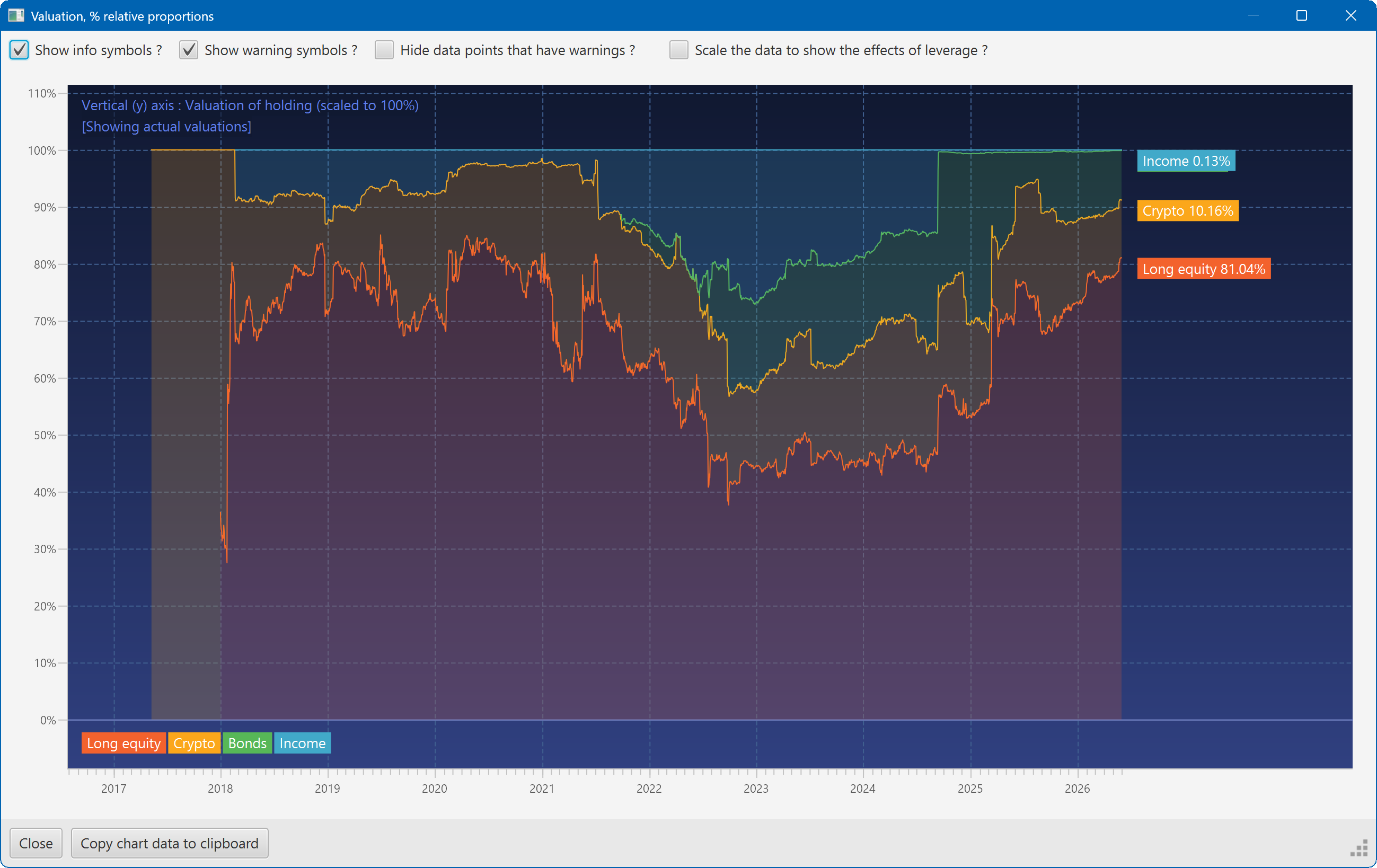
This plot shows the changing composition of a portfolio over time. It uses user-defined groups to organise the assets into different classes.
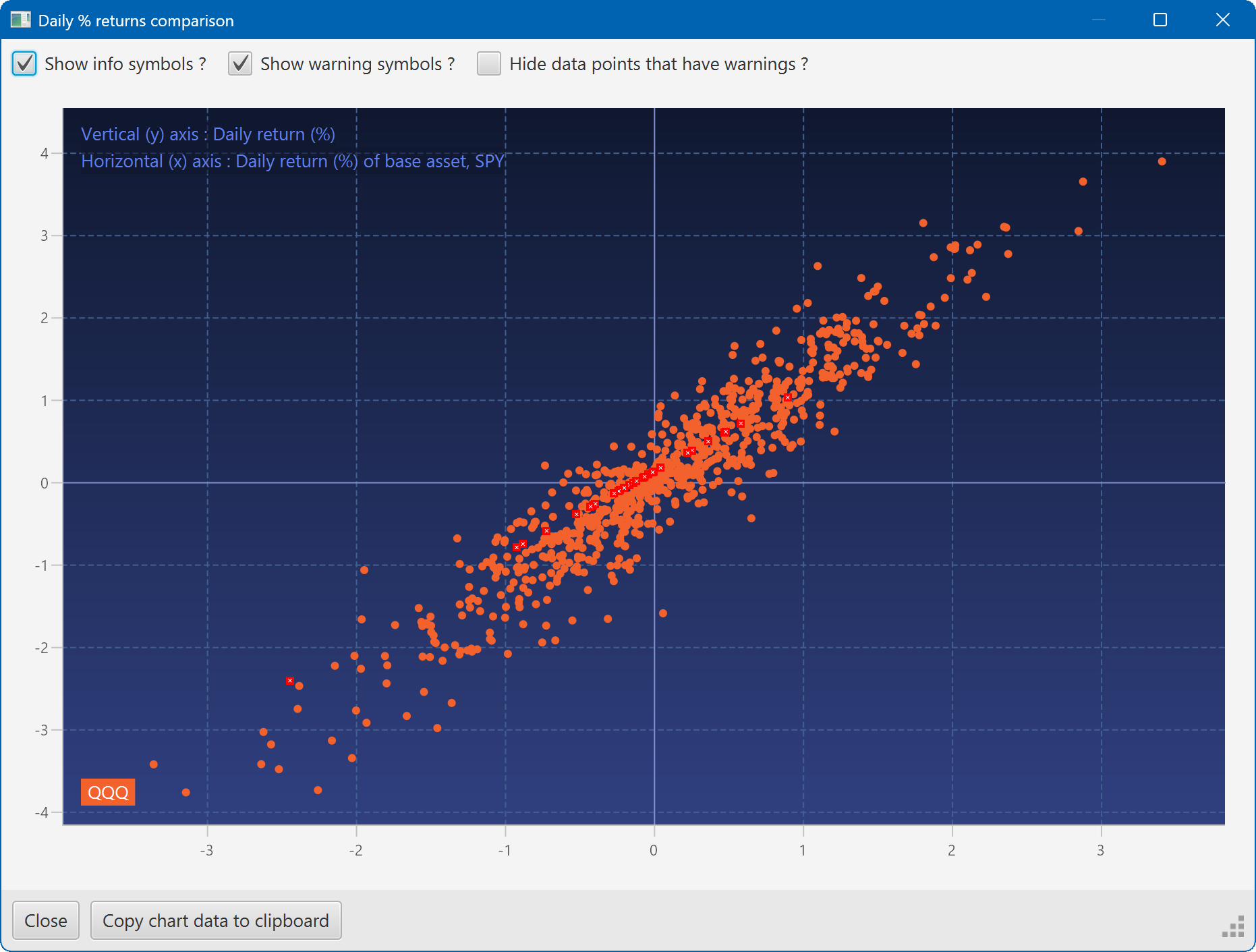
A scatter plot, showing how the daily moves of one security (QQQ) relate to the daily moves of another (SPY)
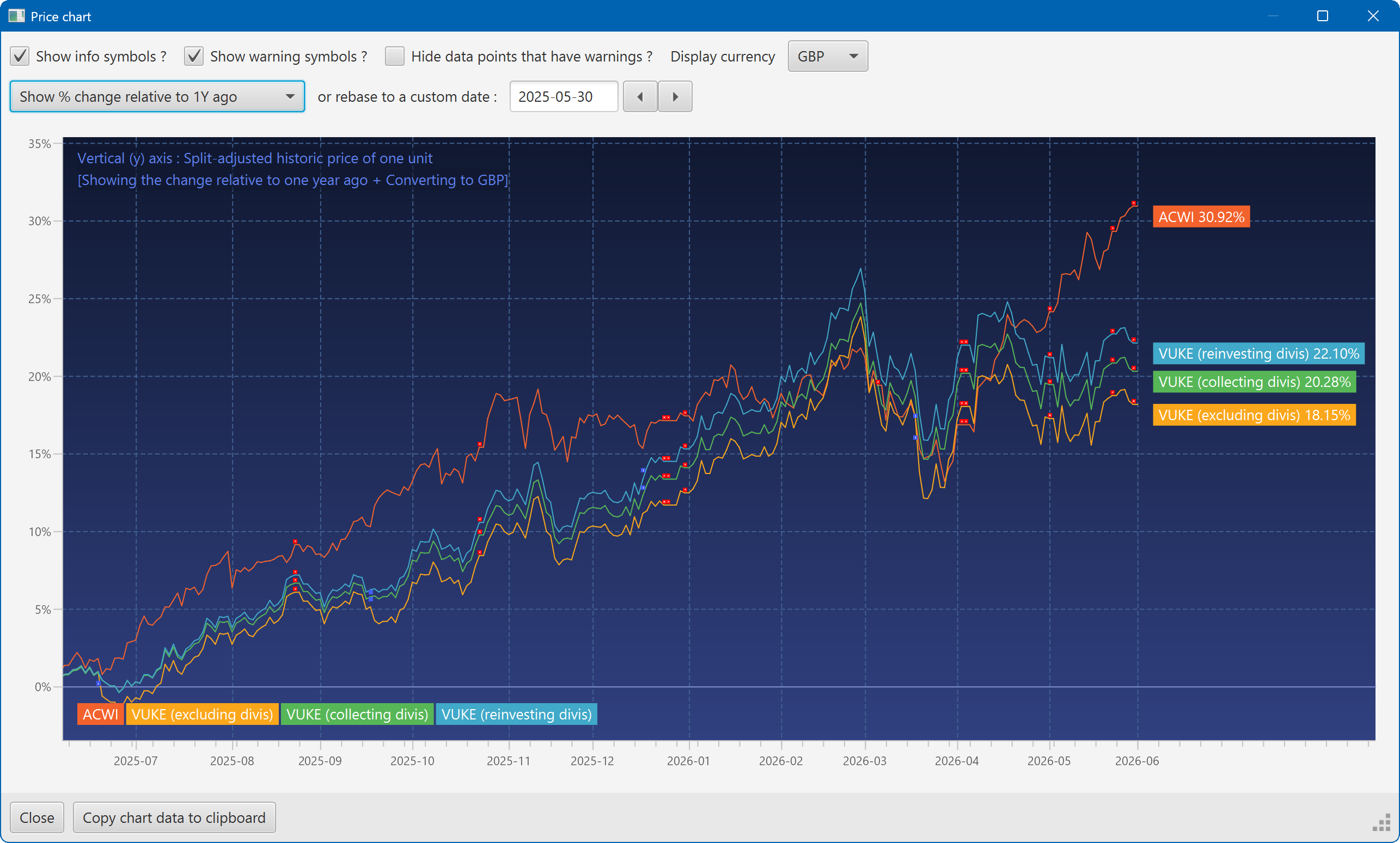
A chart showing the growth of two securities over the past year
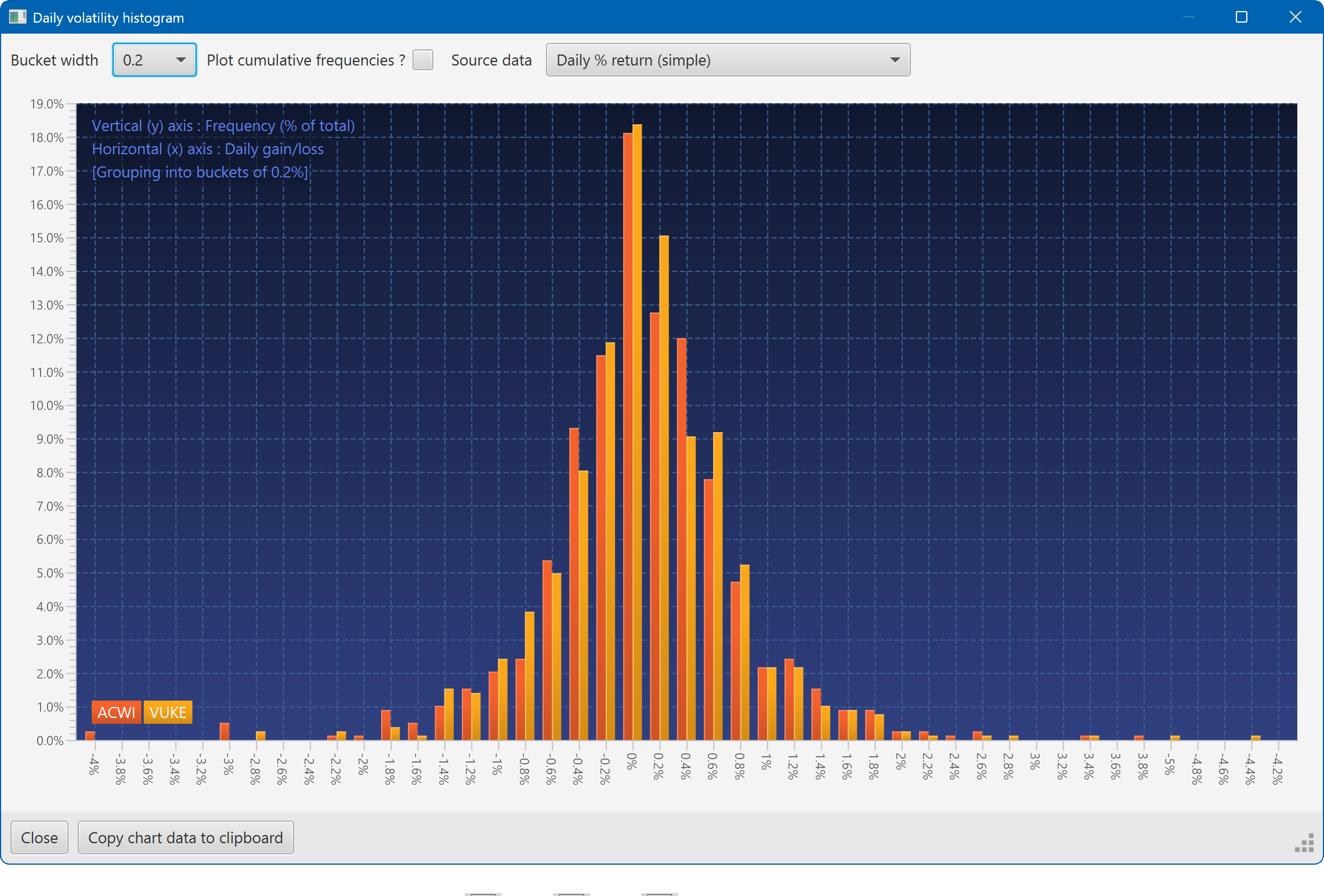
A histogram showing the daily returns of two securities, overlaid
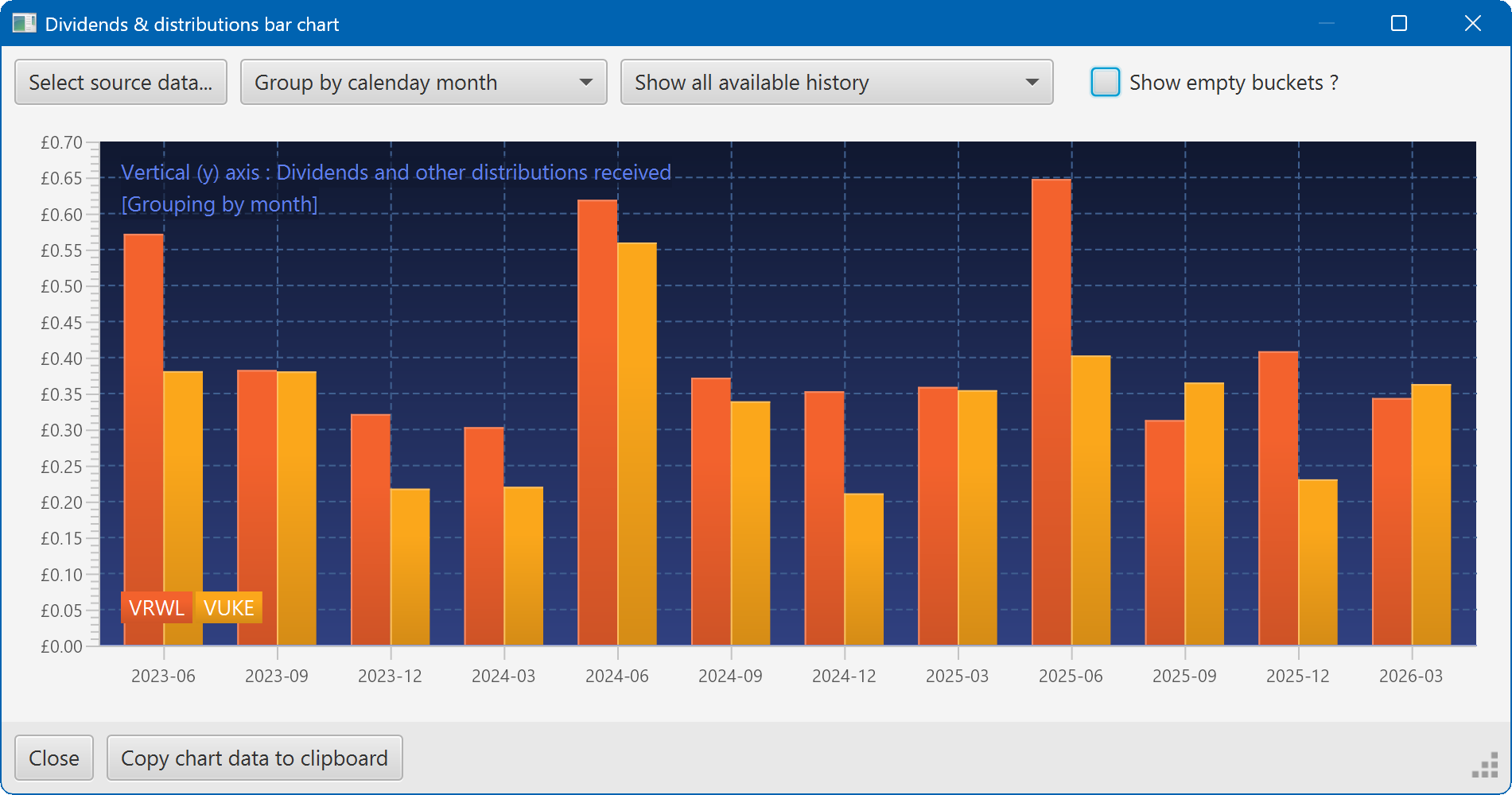
A bar chart showing the dividend history of two securities